
A Vinted relist tool prepares a new listing from an existing item or backup so you do not rebuild the photos, description and price by hand. VintHelper's Dressing+ puts that work in a batch preparation panel: select the items, review the details and choose the available draft, publication or scheduling option. Editing keeps the existing listing; relisting creates a replacement. Start with that distinction, then use the tool for the work it actually saves.
- Relist only after you can name what was weak about the last version: photo, title, price, proof, or timing.
- Back up the listing before changing it so the before-and-after is visible instead of imaginary.
- Use a small controlled batch; a hundred blind reposts teach you less than ten reviewed ones.
Relist or edit? Choose the operation you need
If you only need to correct a measurement or price on the existing listing, edit it. If you want a replacement listing built from the item or saved material, use relisting. They are different operations, not two names for refreshing the same page.
Before a relist, make a short change list: cover image, searchable title, real measurements, condition and price. A new listing date cannot explain a dark photograph or a missing size.
| Task | Choose | What to inspect |
|---|---|---|
| Correct the current listing | Edit | The changed field on the same listing |
| Prepare a replacement | Relist | Photos, details, price and per-item result |
| Work from saved material | Backup workflow | That the backup contains the material you need |
Prepare the batch in Dressing+
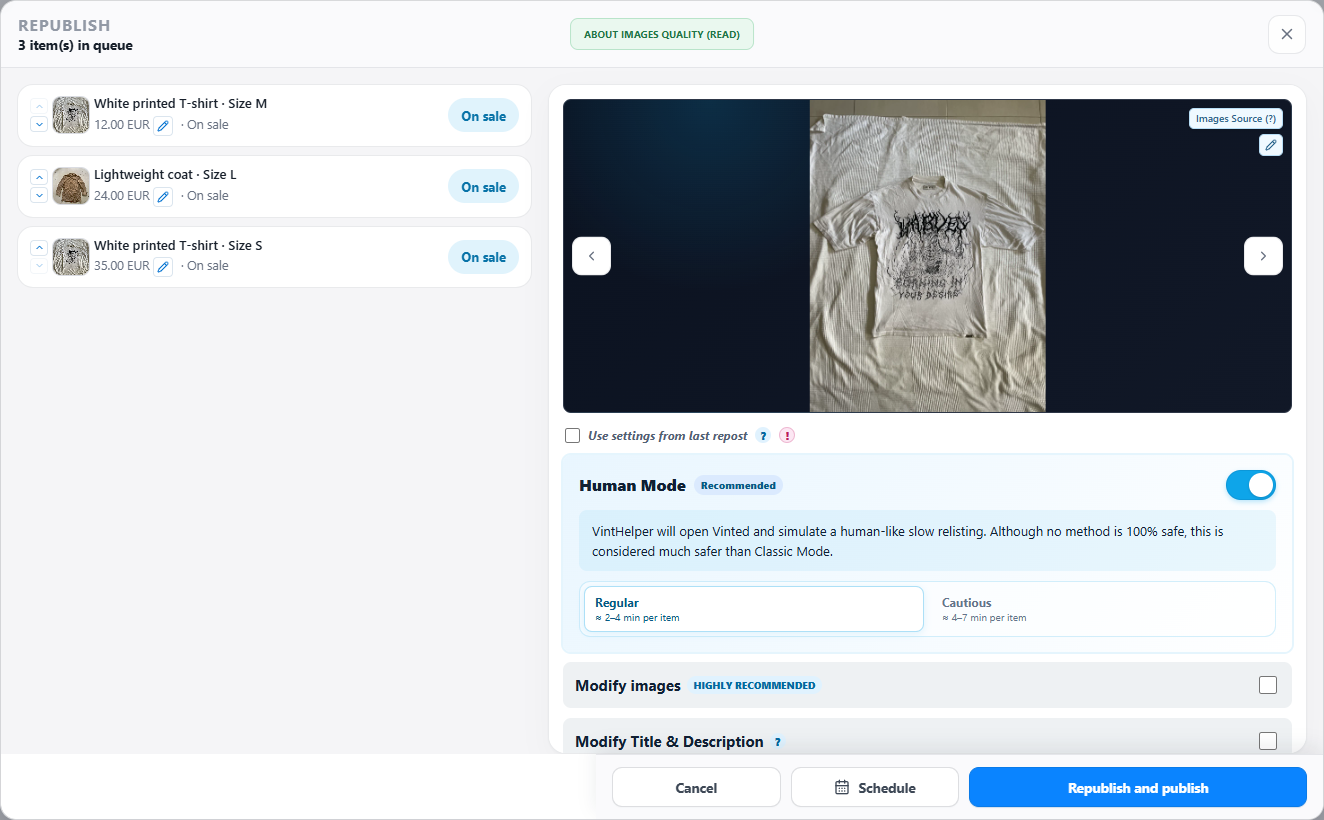
Open Dressing+, select the listings and choose the relisting action. The preparation panel brings the selection and its settings together; opening it is not the same as publishing everything immediately.
Review the information and photo source. When using saved photos, check the backup first; when using current listing material, inspect what Vinted provides. Prepare a draft when you want to finish the listing yourself, or use the publication and scheduling choices your plan provides.
A practical batch: five older jackets
Give the first jacket a brighter cover, add the second one's chest measurement and revise the third one's buyer-search title. Leave the fourth alone if it needs no new listing. Set the fifth aside if a condition detail needs checking.
Keep the changes specific. You should be able to explain what improved on each selected item, rather than using the number of actions as the measure of progress.
Know what happens to the original
For a linked live item, relisting is a replacement workflow, not a promise to keep active duplicates. Check the per-item outcome and review a draft if a field needs attention before publication.
Keep Vinted and VintHelper open while the browser workflow runs. A scheduled job is not a cloud service that continues after you shut down the device. The guide shows the current options and their requirements.
Measure the new listing's result
Record what you changed, whether questions became easier to answer and whether the item received offers or sold. Do not treat relisting as proof of an algorithmic boost. It is a way to execute listing work efficiently and give a better listing another opportunity.
FAQ
What does a Vinted relist tool do?
It prepares a new listing from an item or backup. Dressing+ combines the selected items, photos, details and price settings in one preparation panel.
Is relisting the same as editing?
No. Editing changes the existing listing. Relisting prepares a new replacement listing, with its own result to review.
Does relisting guarantee more views or sales?
No. The useful benefit is less manual listing work. Photos, price, fit information and buyer demand still determine whether the item appeals.
Can a scheduled relist run with the browser closed?
No. Keep the required Vinted and VintHelper browser workflow open on an active device.